
Ask AI lets you ask questions about your analytics in plain English and get an answer drawn from your own data — plus an automatic weekly summary. Open it from the Ask AI sidebar item, or the 🤖 Ask AI link in the top navigation bar on any report page. (This is a Pro feature and requires WordPress 7.0+ — the link only appears when it’s available.)
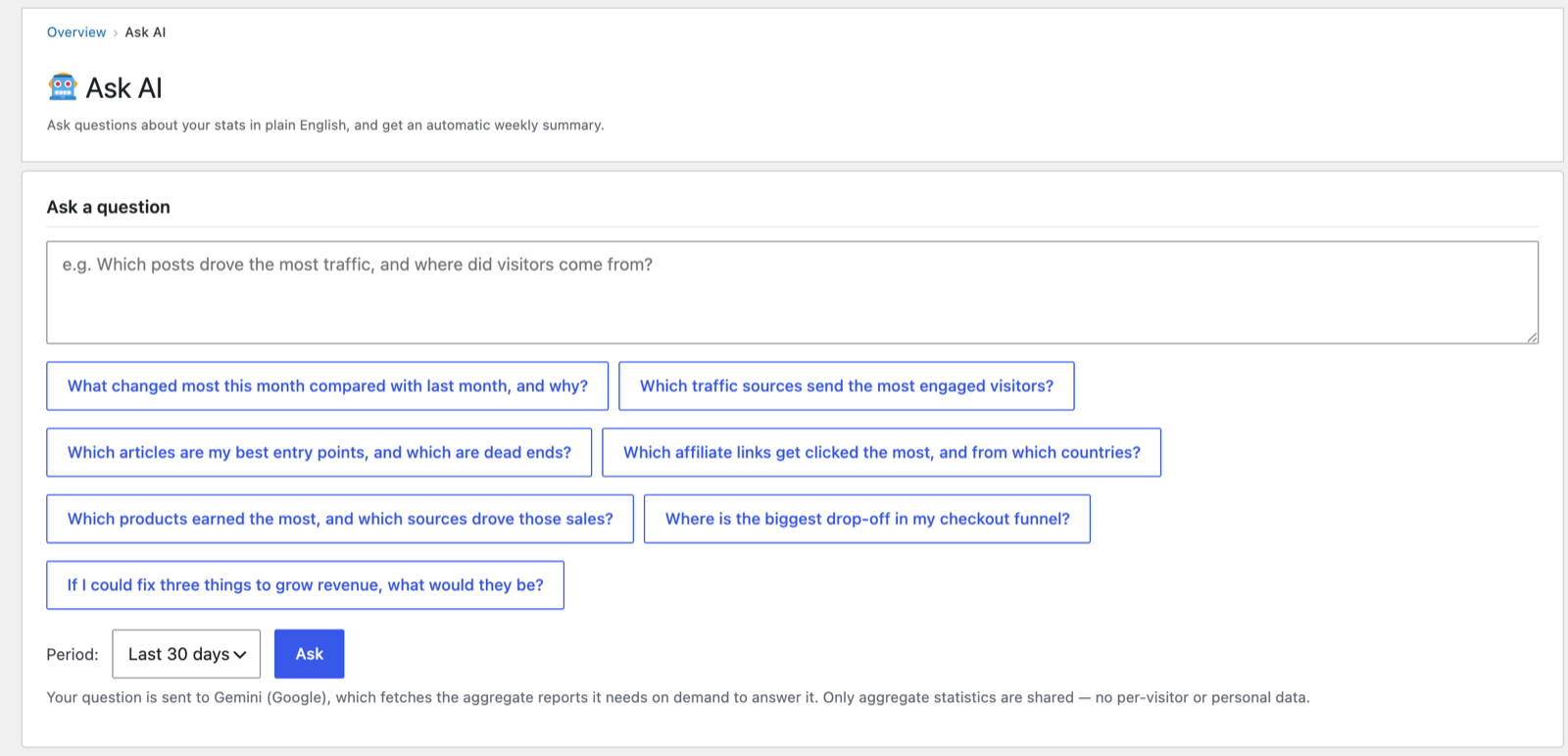
Asking a question
Type a question, pick a Period, and click Ask. A row of example prompts gets you started — and these are written to play to the assistant’s strengths (combining reports and comparing periods):
- What changed most this month compared with last month, and why?
- Which traffic sources send the most engaged visitors?
- Which articles are my best entry points, and which are dead ends?
- How much bot traffic did you filter this week, and what kind?
- Which day was quietest last month, and were there any days with no visitors?
- Which tracks were played most, and which pages are they played from?
- Which affiliate links get clicked the most, and from which countries?
- Which products earned the most, and which sources drove those sales?
- Where is the biggest drop-off in my checkout funnel?
- If I could fix three things to grow revenue, what would they be?
How it answers
The built-in connection uses on-demand tool-calling: rather than sending one fixed snapshot, the AI fetches whichever reports (and date ranges) it needs to answer your specific question — so it can compare periods, drill in, and combine sources. It can only ever read your analytics — aggregate totals by default — it cannot change anything on your site, and it stays strictly on the topic of your statistics.
Privacy: Your question is sent to your chosen AI provider, which fetches the reports it needs to answer. By default only aggregate statistics are shared — no per-visitor or personal data. Per-visitor answers are a separate opt-in (below).
Per-visitor answers (optional, off by default)
Out of the box the assistant can tell you “you had 42 visitors from Germany” but not which visitors — every tool it holds returns aggregate totals. If you want questions like “who are my most engaged visitors this month?” or “show me visitor a1b2c3d4” to work, enable Per-visitor answers under Settings & Privacy → AI Assistant.
With it on, the assistant gains two extra tools:
- Top visitors — pseudonymous visitors ranked by engaged time, sessions or page views (optionally only 🤖-flagged suspected bots), each identified by the same ID chip shown throughout the dashboard. Chips in the answer are clickable — one click opens that visitor’s full profile.
- Visitor detail — the profile behind one chip: first/last seen, totals, country, device, recent sessions and interaction events.
What this means for privacy, stated plainly:
- What’s shared with your AI provider is the same pseudonymous view the dashboard shows — chip IDs, activity counts, country, device. Never IP addresses or names, because the plugin doesn’t store them; identities are unrecoverable hashes.
- It is still personal data in the GDPR sense (pseudonymous, not anonymous), so if you enable this, your privacy policy should mention your AI provider as a data processor.
- These tools are dashboard-only — they are never registered as WordPress abilities and never exposed over MCP, regardless of the setting.
Weekly summary
PAJ generates a plain-English weekly summary of what’s up, what’s down, and what’s worth attention — reporting your content by title (not raw IDs). A note shows whether it’s being emailed to the site admin; if not, a one-click link takes you to enable it. Use Generate summary now to refresh it on demand.
Choosing a provider (setup)
Configuration lives under Settings & Privacy → 🤖 AI Assistant (see Settings & Privacy). You can connect:
- Claude (Anthropic), ChatGPT (OpenAI), or Gemini (Google) directly, using your own API key (or a wp-config constant) — no extra plugin required; each gets full tool-calling; and
- a model per provider — each provider’s current line-up is offered, from its most capable model down to its fastest and cheapest. If you want a model that isn’t listed yet, the
pajstatistics_ai_modelsfilter lets you add or replace the ids offered for a provider without waiting for a plugin update.
Or leave all keys blank to use an installed AI-provider plugin instead. This is the only feature in PAJ that contacts an external service, and only when you use it — billed to your own provider account.
Your API key is kept secure
Your provider API key is a credential, and PAJ Statistics treats it like one. When you save a key, it is:
- Encrypted at rest — stored as ciphertext (AES-256-GCM) using a key derived from your site’s secret keys, not as readable plain text. A stray database backup or a database-only leak does not expose it.
- Never shown again in full — the settings field only ever displays dots (
••••••••); the real value is never rendered back into the page. - Never sent to the browser — the key is used only server-side to talk to your AI provider. It is never placed in page JavaScript, and never returned by any REST/AJAX response. (This is a common leak in other plugins; PAJ avoids it.)
- Not autoloaded and never logged — it isn’t loaded into every page request, and it never appears in error logs or diagnostics.
- Admin-only and CSRF-protected — only a user who can manage settings can view or change it, and saves are nonce-verified.
The most secure option: define it in wp-config.php
For the strongest protection, define your key as a constant in wp-config.php instead of saving it in the dashboard, for example:
define( 'PAJSTATISTICS_AI_API_KEY',      'sk-ant-…' ); // Claude
define( 'PAJSTATISTICS_AI_OPENAI_KEY',   'sk-…'     ); // ChatGPT
define( 'PAJSTATISTICS_AI_GEMINI_KEY',   'AIza…'    ); // Gemini
When a constant is set, PAJ uses it, keeps the key out of the database entirely, and locks the settings field so it can’t be overwritten. This is the approach we recommend for security-conscious sites — the key lives only in a file on your server, never in the database.
Honest note on limits: encryption at rest protects against a database-only
compromise. It cannot protect against a full server compromise (where an
attacker also obtains
wp-config.php) — no self-hosted plugin can. That’s exactlywhy the wp-config constant is the strongest choice: with it, the key isn’t stored
in the database at all.
Removing a key
To remove a saved key, tick “clear it” next to the field and save — the stored key is erased. (If the key is set via a constant, remove it from wp-config.php instead.)
Next: Email reports →
Screenshots are illustrative — see the note on the documentation index.