
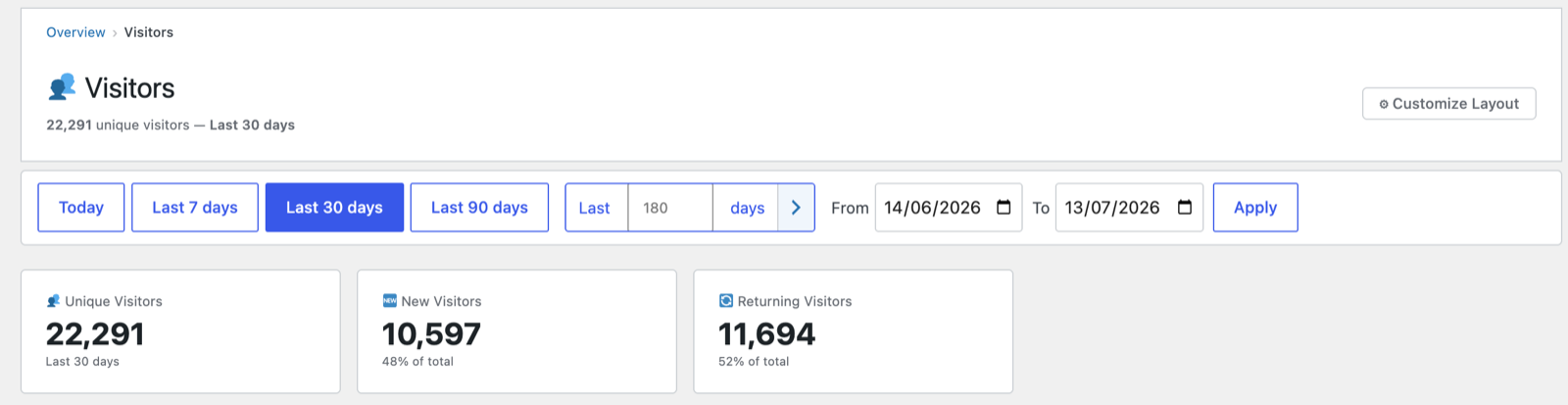
The Visitors screen focuses on visitors rather than page views — how many distinct visitors you had, how many were new vs. returning, and a browsable list of them one by one. Each “visitor” here is a pseudonymous signature — a rotating, salted hash, never a name or an identifiable person — so a “profile” is simply everything that one signature did, not a dossier on a real individual (see Understanding your metrics). Open it from Audience → Visitors. Like the Overview and Reports, the whole page is arrangeable with ⚙ Customize Layout.
Headline cards
- Unique Visitors — distinct people in the selected range.
- New Visitors — first-time visitors (with their share of the total).
- Returning Visitors — people who had visited before.
A high returning share (52% in the example below) means people keep coming back; a high new share means you’re reaching fresh audiences. Both can be healthy depending on your goals.
Views & Unique Visitors Over Time
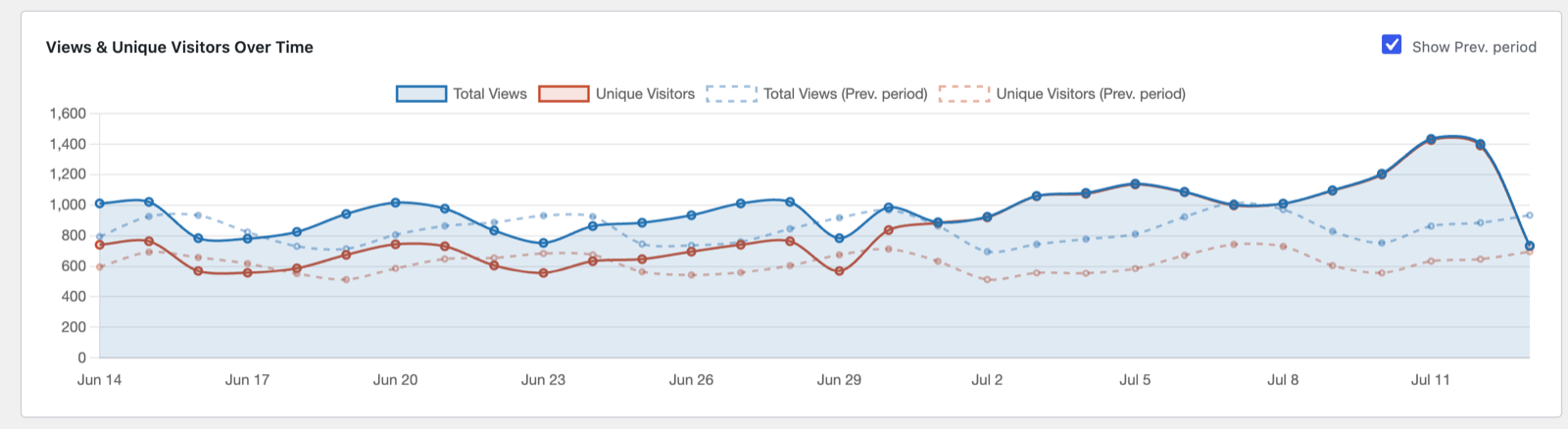
The same day-by-day chart as on Reports, with an optional previous-period overlay (tick Show Prev. period) — here framed around visitors. For a single-day range (Today, or any one custom date) it switches to hour-by-hour with yesterday overlaid — not a fault, just a finer scale.
The visitors table
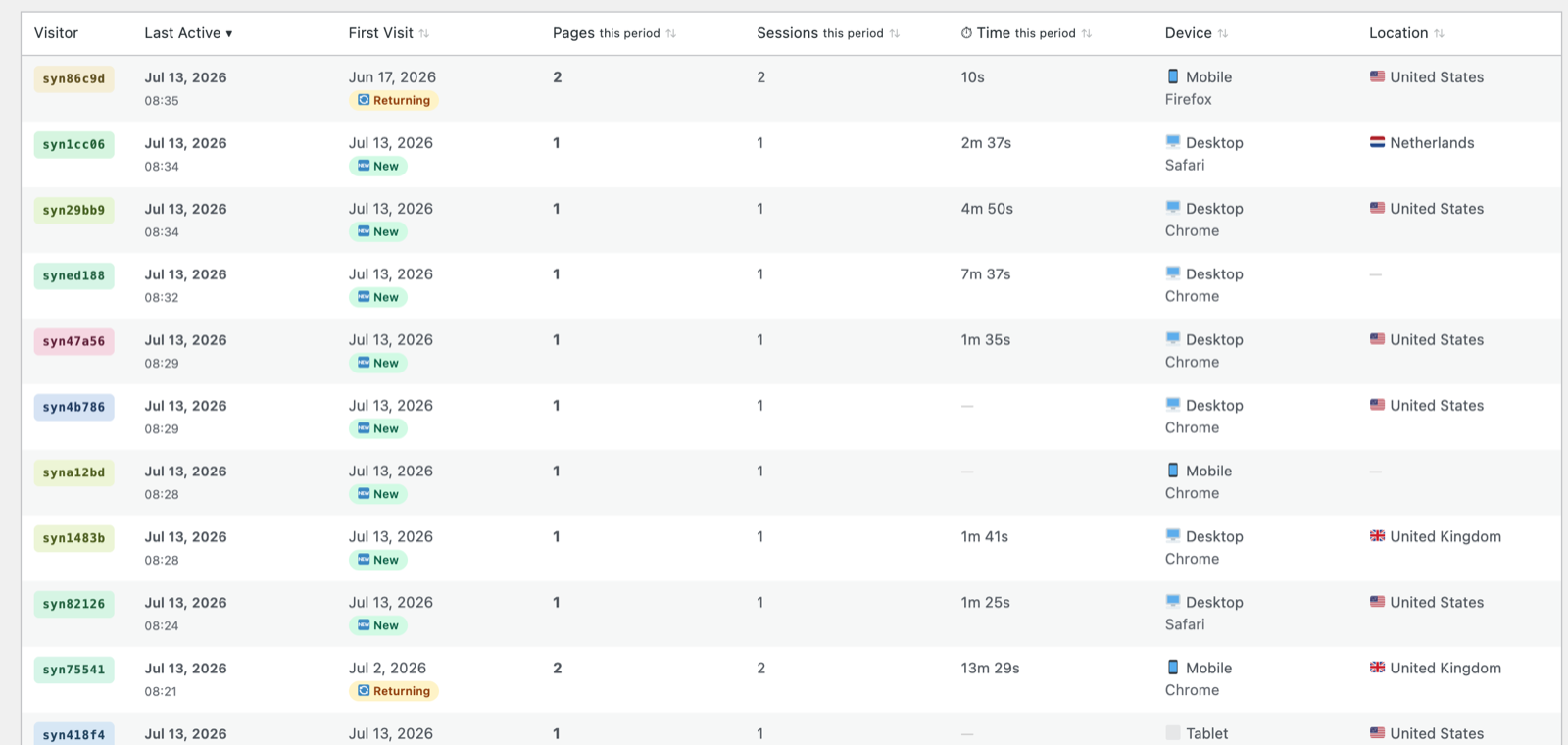
Below the chart is a paginated, sortable list of individual visitors. Each row shows:
- Visitor — a coloured ID chip (e.g.
a1b2c3d4). This is a privacy- preserving signature, not a name. The same chip identifies the same visitor everywhere in the plugin, and clicking it opens that visitor’s full profile (their sessions, journey and timeline). - Last Active / First Visit — with a 🆕 New or 🔄 Returning badge.
- Pages (this period) and Sessions (this period) — how many pages they viewed and how many separate visits they made, so you can see depth at a glance.
- ⏱ Time (this period) — total engaged time.
- Device and Location.
Every column header is sortable. A 🆕 / 🔄 / 🍪 / 🔒 legend under the table explains the badges:
- 🍪 Cookie visitors gave analytics consent and are tracked by a persistent ID for accurate cross-month returning detection.
- 🔒 Hash visitors are identified by a privacy hash derived from their request, which rotates monthly.
- 🤖 Suspected bot marks visitors flagged by the daily behaviour scan. The signature is always the same three tells — a single page, zero interaction events (no scrolls, clicks, downloads or plays) and no real input-device signal (mouse move, key press, scroll wheel or touch) — in one of two shapes: spread thin as repeat single-page sessions (coming back day after day to the same page), or concentrated as a single-sitting burst (loading the same page many times in one session, then leaving). Hover the badge to see which rule fired. A visitor who ever moves the mouse, types or taps is treated as a person and is never flagged. The flag is informational only (nothing is excluded from your statistics) and clears automatically if the visitor starts interacting.
Dealing with a flagged visitor
Open a flagged visitor’s profile and the verdict is yours — two buttons appear under the visitor’s details (admins only):
- ✅ Not a bot — removes the badge and remembers your decision: the daily scan will never flag this visitor again. Use it when you know the “bot” is real — a kiosk screen, your own monitoring, or a page too short to scroll.
- 🗑 Delete this visitor’s data — erases everything they did (visits, sessions, engaged time, events) and recalculates the affected daily totals and monthly visitor counts, so your historical numbers read as if the bot had never visited. A tick box (on by default) also stops tracking the identity from now on — future hits are ignored and logged in the filtered-traffic panel. A bot that sheds its identity (clears cookies) gets caught again by the next scans as the pattern re-accumulates.
Deletion recalculates from raw visit data, which is kept for your retention period (365 days by default) — so any bot you deal with within a year of its visits cleans up completely.
Filtering
- Use the All / New / Returning filter to narrow the list — the split bar shows the new/returning balance at a glance, and each figure is a clickable filter.
- Arriving from another report (e.g. a referrer) may pre-filter the list to that source; a banner shows the active filter with a ✕ Clear filter link.

Next: Sessions →
Screenshots are illustrative — see the note on the documentation index.