
The Settings & Privacy screen (Admin → Settings & Privacy) is organised into tabs. Most defaults are sensible out of the box — these are the levers when you want to tune behaviour.
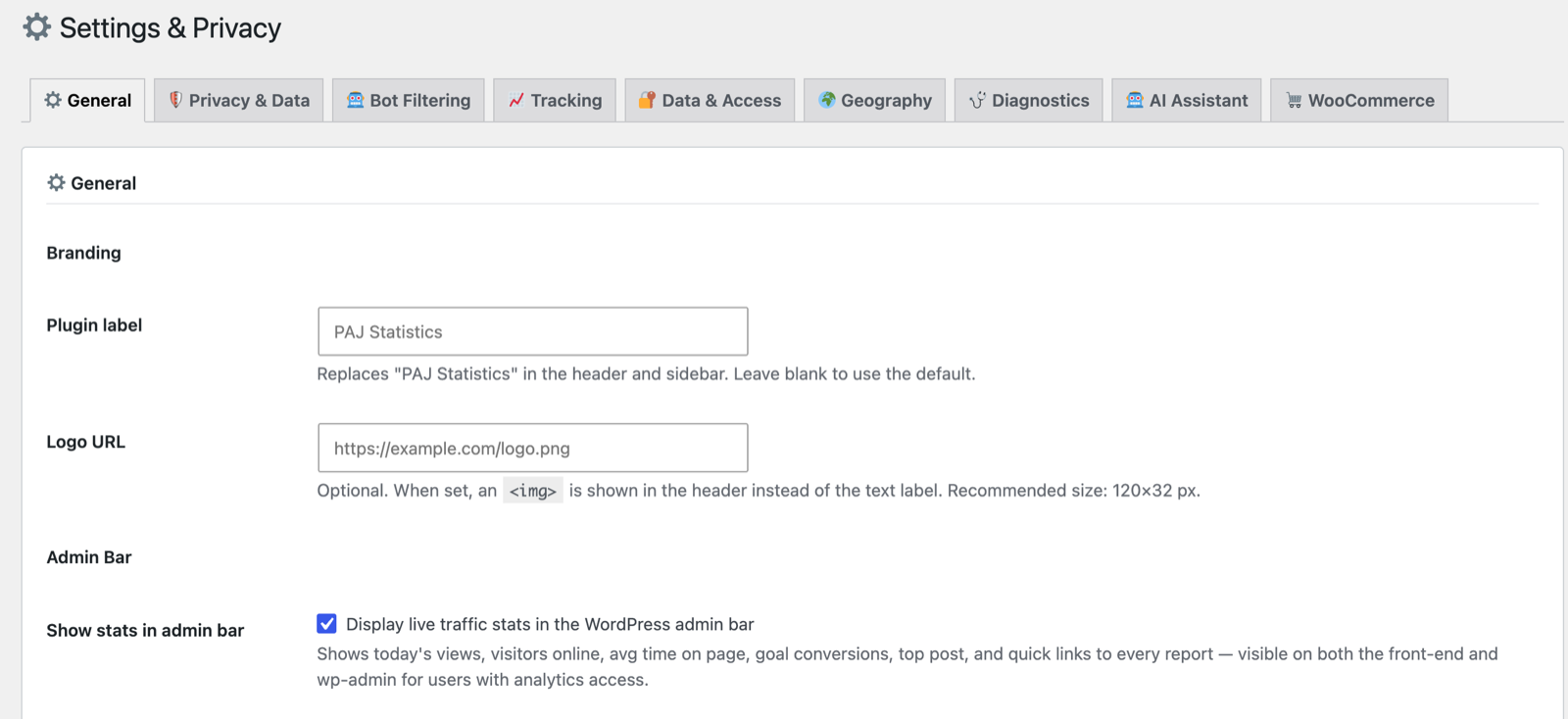
⚙ General
- Admin bar — show live traffic stats (today’s views, online now, top post, quick links) in the WordPress admin bar.
- Features — switch off any module you don’t need; its admin pages, tracking and background tasks then stop loading entirely, keeping the plugin lean. Core analytics (views, reports, visitors, referrers, devices, geography) are always on.
🛡 Privacy & Data
- Returning-visitor cookie (
pajstatistics_visitor) — the only cookie PAJ Statistics sets, and you can turn it off entirely.- On: a first-party cookie holding a random ID recognises returning visitors across months and IP changes, giving you accurate unique-visitor counts and a true new-vs-returning split. It is only set once the visitor grants statistics consent.
- Off: no cookie is ever set. Visitors are identified by a monthly-rotating privacy hash instead, so returning visitors can’t be recognised across months and unique counts are less precise — but the plugin has zero cookie footprint, and needs no cookie-consent banner of its own.
What you give up by switching it off. The hash changes on the 1st of each month, so anything that depends on recognising the same person over time gets weaker: new-vs-returning visitors, visitor loyalty, and the time-from-first-cart-to-purchase figure on the WooCommerce Insights page will all lean toward “new”. Two things are not affected: totals like views, sessions and revenue are unchanged, and WooCommerce New vs Returning customers (and lifetime value) keep working, because orders are matched on a stable customer identity derived from the account or billing email rather than the browser.
The same caveat applies, more strongly, to anonymous mode (Privacy & Data): that gives every visit a fresh random identity, so returning-visitor detection is switched off entirely by design.
- Consent mode — Anonymous (default: count visitors cookielessly until they consent, then add the returning-visitor cookie) or Strict (record nothing until consent).
- IP anonymization and Do Not Track handling.
- Data retention — how long raw visit data is kept (default 365 days). Never-pruned monthly roll-ups keep your Year-on-Year history intact regardless.
Using a cookie banner? Check the bridge
If you run a consent plugin — Complianz, CookieYes, Cookiebot, Borlabs and others — there’s one dependency worth knowing about, because it catches most people out.
Consent plugins don’t talk to analytics plugins directly. They publish the visitor’s choice through a small, free plugin called WP Consent API, which acts as the bridge. PAJ Statistics reads that bridge.
None of the major consent plugins install it for you, and most don’t mention it. If it’s missing, your banner still blocks its own scripts, but PAJ Statistics never learns whether the visitor accepted or declined — so it assumes consent, sets the returning-visitor cookie either way, and the Consent mode setting above has no effect.
The fix takes a minute and needs no configuration:
- Plugins → Add New, search for WP Consent API, install and activate it.
- That’s it. Your consent plugin publishes to it automatically, and PAJ Statistics starts honouring real consent decisions immediately.
Or take the other route: switch the returning-visitor cookie off (above). PAJ Statistics then sets no cookies at all, so there is nothing for the banner to gate — the problem disappears rather than being fixed. The trade-off is the one described under that setting: your totals are unchanged, but recognising the same visitor across months gets weaker. Installing the bridge keeps both.
PAJ Statistics detects this situation and warns you in the admin, so you don’t have to remember to check.
🤖 Bot Filtering
- Sensitivity preset (e.g. Standard / Strict) — controls the bot-detection layers (Matomo signature list, headless/automation detection, empty-UA check).
- Rate limit and daily hit cap per IP to drop abusive traffic.
- Exclude IPs — specific addresses to never track.
- Behavioural flagging (automatic) — a daily scan catches the bots that pass every filter above: automated browsers running real Chrome on rotating IPs. A visitor with many sessions on a single page and zero interaction events (no scrolls, clicks, downloads or plays) is badged 🤖 Suspected bot on the Visitors screens. Flag-only: nothing is excluded or deleted, and the badge clears itself if the visitor ever starts interacting. The verdict is yours — a flagged visitor’s profile offers ✅ Not a bot (never flag again) and 🗑 Delete this visitor’s data (erase + recalculate totals, optionally block the identity from future tracking); see Visitors → Dealing with a flagged visitor.
📈 Tracking
- View cooldown, excluded user roles (e.g. don’t track admins), click-tracking selectors, SPA/pushState tracking, and related options.
🔐 Data & Access
- Which roles/capabilities can view analytics, CSV export, and GDPR erasure tools (erase a visitor’s data by IP).
🌍 Geography
- Detection method — Cloudflare country header, the free DB-IP Lite database (no key), or MaxMind GeoLite2.
- City detection toggle (more detail, but increases how identifiable a visitor is — country-only is the privacy-minimising choice).
🩺 Diagnostics
- Plugin status, environment checks, the AI-abilities/MCP status, and the internal error log.
🤖 AI Assistant
- Enable the assistant, pick a provider (Claude / ChatGPT / Gemini), enter the API key (or define it in
wp-config.php), choose a model, and toggle the weekly-summary email. See Ask AI. - API key security: saved keys are encrypted at rest, masked, never sent to the browser, never logged, and can be cleared with the “clear it” checkbox — or defined as a
wp-config.phpconstant to keep them out of the database entirely. See Ask AI → Your API key is kept secure.
🛒 WooCommerce
- Store-specific options, including whether to track admin/shop-manager orders (off by default so your test orders don’t skew revenue).
Next: At a glance: outside the plugin’s menu →
Screenshots are illustrative — see the note on the documentation index.